
The goal here is specific: block apps at certain times, automatically, without you doing anything in the moment. Feeds off after 10pm. Games gone during work hours. The whole point is that the decision happens once, on a clear-headed afternoon, and then the schedule does the remembering.
You can get most of the way there with what's already on your iPhone. Whether you need to go further depends on how good you are at talking yourself past your own locks. This guide covers both.
Block apps at certain times with Screen Time (built in)
Apple's Screen Time can block apps at certain times using two features that work best together.
Downtime is the blunt instrument: a schedule during which only the apps you've allowed still work.
Open Settings, then Screen Time.
Tap Downtime, turn on Scheduled, and set the window (it handles overnight spans like 10pm to 7am fine).
Under Always Allowed, pick the apps that should survive: Phone, Messages, Maps, whatever your life needs.
Turn on Block at Downtime. Without it, Downtime is a suggestion, not a schedule.
App Limits is the finer tool: per-app or per-category daily allowances, with different limits for different days.
In Screen Time, tap App Limits, then Add Limit.
Choose a category (Social, Games) or expand one to pick specific apps.
Set the daily allowance, and use Customize Days to make weekdays stricter than weekends.
Turn on Block at End of Limit.
Apple's own Screen Time schedule guide covers the variations. Ten minutes of setup, and it costs nothing.
Where the built-in way fails
Screen Time was designed with an escape hatch. When a limit hits, the block screen offers to ignore it, one more minute, fifteen more, or the rest of the day, and you can dismiss your own schedule with a tap. That single button is why so many people set up App Limits in January and can't remember having them by March.
The standard patch is a Screen Time passcode that someone else holds, a partner, a friend, so ignoring a limit means asking a human. It works, but it turns your phone setup into a two-person system, and not everyone has (or wants) a warden.
The honest summary: Screen Time is excellent at drawing the lines and mediocre at holding them. If the ignore button doesn't tempt you, stop reading here; you're done, and it cost nothing.
Block apps at certain times with enough.
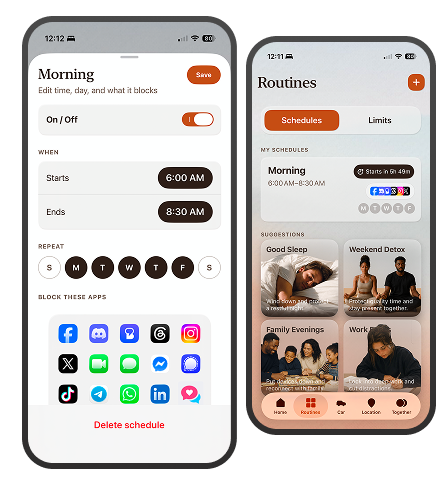
The ignore button is the gap third-party apps exist to fill, and it's the exact premise we built enough. around: schedules you set once, named for the life they protect, that still hold at 11pm.
Download enough. and open Schedules.
Start from a template (Good Sleep runs 10pm to 8am, and there's Work Focus, Family Evenings, and Weekend Detox) or create your own with any start and end time. Overnight spans work.
Pick the days it runs, and choose the apps or whole categories that should disappear during the window.
That's the setup. When the schedule starts, the apps you chose are hidden until it ends.
The difference from Screen Time is what happens at the boundary. There's no free ignore button: getting into an app you scheduled away takes a deliberate press-and-hold, and you get a small daily allowance of those, not an infinite supply. Turn the strictness level up and the hold gets longer and the allowance shrinks. The free plan includes one schedule, which is enough to run the 10pm experiment properly.
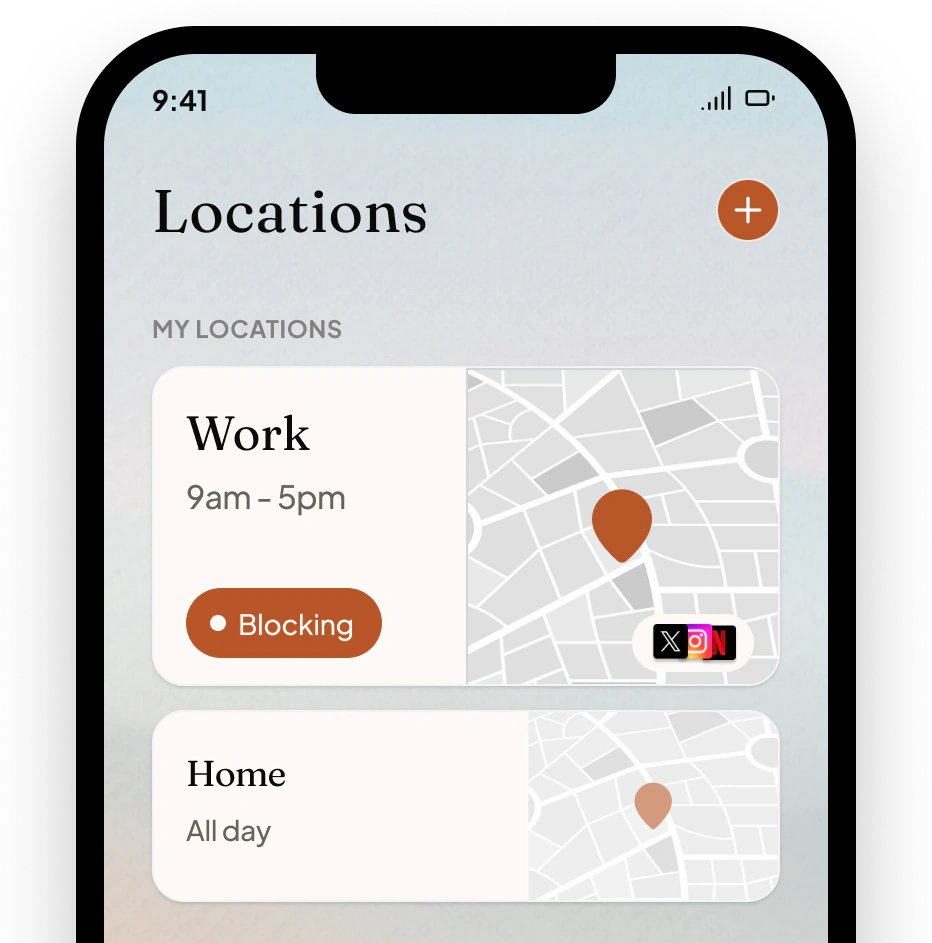
And because your phone knows more than the clock, schedules can pair with places: apps that leave when you arrive at work, without you setting a single time. Different place, different phone.
Fairness requires naming the alternatives: Opal ($99.99 a year for the full product) runs polished scheduled sessions with difficulty levels that remove the escape hatches, and BePresent wraps its limits in streaks and social accountability. We compared all three here. Any of them beats an ignored built-in limit.
A setup that works
Whatever tool you use, the pattern that holds up is small and boring:
One evening cutoff: feeds and video off from 10pm. This single schedule protects sleep, which pays for everything else. (If evenings are your main battle, our dopamine detox guide is really a long walk around this one change.)
One work window: social and news gone from 9 to 12 on weekdays. Keep the afternoon unrestricted at first; you can always widen a schedule that's working.
Leave the rest alone. A phone with restrictions on everything gets factory-reset by Friday. Two schedules you keep beat seven you abandon.
Set it on a Sunday afternoon. By the second week the 10pm version of you stops checking whether the apps are there, which was the point all along.